 LinSync
Features
Everything LinSync does
Back up to a drive, another computer or straight to the cloud, with every copy checked against the original. Or send a file across just once. Get any replaced file back, and lock what goes to the cloud. Then the details: the four ways to copy, what happens during a run, and what else is in the box.
New: straight to the cloud
Back up straight to Google Drive, Dropbox and more
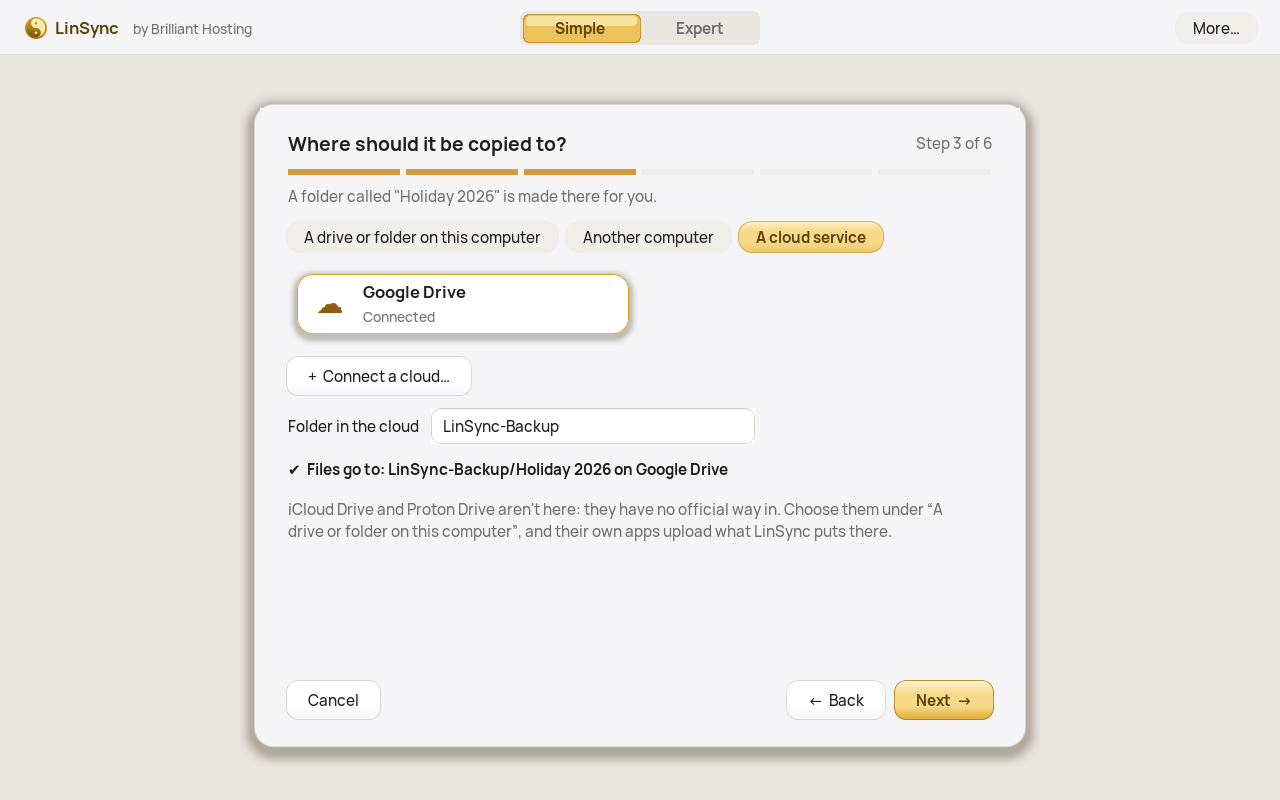
A backup can now go straight to a cloud service, with no cloud app or synced folder in between. Choose A cloud service in New backup's third step, or a cloud as either side in Expert. LinSync does the talking through rclone, the well-known open-source cloud tool, which comes inside the Mac and Windows downloads.
Which clouds
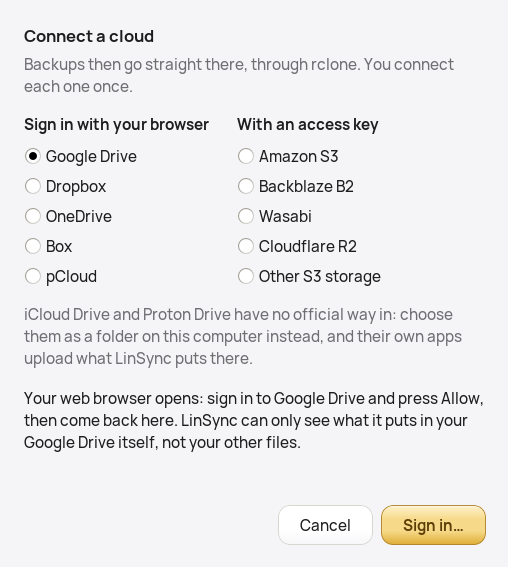
- Sign in with your browser: Google Drive, Dropbox, OneDrive, Box and pCloud. Your browser opens on the service's own page: sign in, press Allow, and that's it. You do it once.
- With an access key: Amazon S3, Backblaze B2, Wasabi, Cloudflare R2 and other S3 storage. Paste the key and the bucket.
- Not in the list: iCloud Drive and Proton Drive, which have no official way in. Choose them as a folder on this computer, and their own apps upload what LinSync puts there.
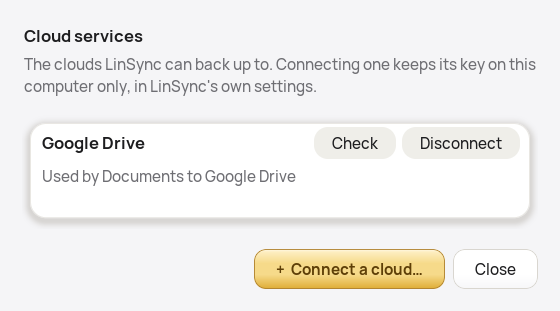
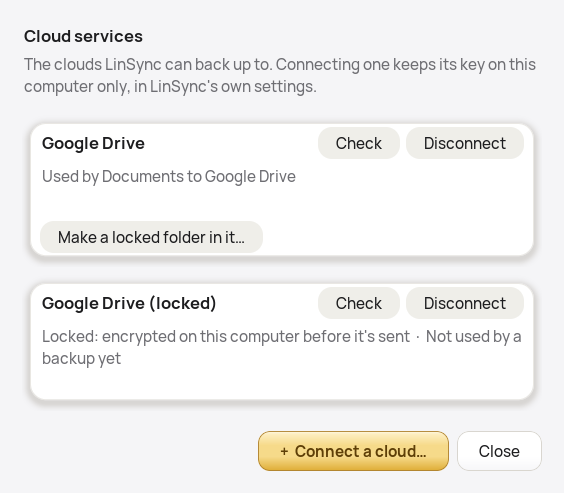
- Cloud services, in More, lists the clouds you've connected, says which backups use each, and has Check and Disconnect.
Google Drive, privately
LinSync signs in to Google as itself and asks only for the files it creates (Google's drive.file permission), so it can't see anything else in your Drive. The key Google gives it stays on your computer, readable only by you. Privacy.
The same safety as a drive
Copy, Mirror and Move work to a cloud (two-way Sync doesn't). Mirror keeps what it replaces or deletes in .linsync_archive in the cloud, the safety stop still applies, and a Trial run shows what would happen first.
Private if you want it
Sent as files, the cloud company can read what you store, as with any cloud. Choose a password zip and it's locked with AES-256 on your computer before it goes, so they can't. New backup's last page says which you've picked.
New: any two computers
From one computer to another, with LinSync in the middle
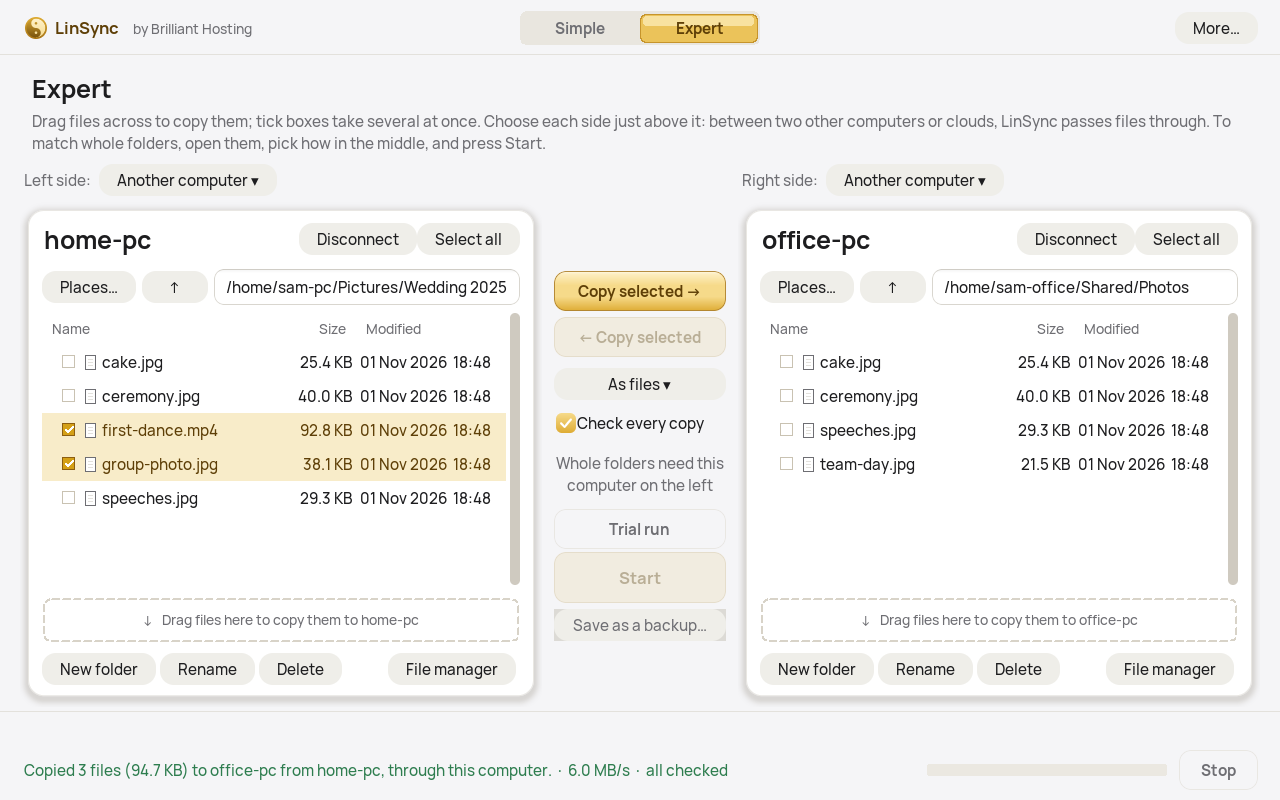
In Expert, each side now has its own chooser right above it: Left side and Right side, each This computer, Another computer or A cloud. So the left can be your home PC and the right your office PC, or one computer and Google Drive, and you copy between them from the computer in front of you.
1. Choose each side
Set Left side to Another computer, then say which one: type its name, or press Find my computers to pick from your Tailscale devices. Do the same on the right, or pick a cloud.
2. Drag across
Pick files or folders on one side and drag them to the other, or press Copy selected. Either way round, as files, one zip or a password zip.
3. LinSync passes them through
What you picked comes to a temporary folder on this computer, goes on to the other side, and the temporary folder is deleted. LinSync checks there's room for it first. The status line ends "…through this computer".
Good to know
- Which computers. The two other computers need to be Macs or Linux computers with remote login switched on (Let other computers back up to this one does it). The one in the middle can be Windows, Mac or Linux.
- Between two clouds, rclone passes the files straight along, through this computer's memory rather than its disk.
- Checked on the way. Every copy is checked against the original at both hops: into this computer, and out to the other side.
- Whole folders (Copy, Mirror, Move and Sync, and Save as a backup) still need this computer on the left. Between two others, select what you want and copy it.
- See the screen, with every part explained.
New: every copy checked
Every copy checked against the original
Servers use ECC memory to catch a single bit that's gone wrong. LinSync does the same for your files: after copying, it works out a fingerprint (a SHA-256 checksum) of the copy and compares it with the original's. If even one bit is different, the fingerprints don't match, and LinSync copies that file again. It's on for every backup, including the ones you've already made, and for every copy in Expert.
Worked out where each file is
The original's fingerprint is taken as it's read for copying, so it isn't read twice. On another computer, that computer works out the copy's fingerprint itself, many files at a time, so nothing comes back over the network to be checked. In testing, 50 files (60 MB) went to another computer in 2.4 seconds checked, against 1.8 unchecked.
Clouds and zips too
Cloud services keep a fingerprint of every file (Google Drive, Dropbox, Backblaze and the rest), and LinSync compares against it: only what that run copied, not the whole backup again. Zips are tested before they go, every file in them read back, a password zip with its password.
Never a bad copy in place
A copy only takes the real file's place once it has checked out. If it doesn't match twice, the file at the destination is left as it was, and the run tells you which one. That's usually a sign of a failing drive or a bad connection.
Seeing it, and switching it off
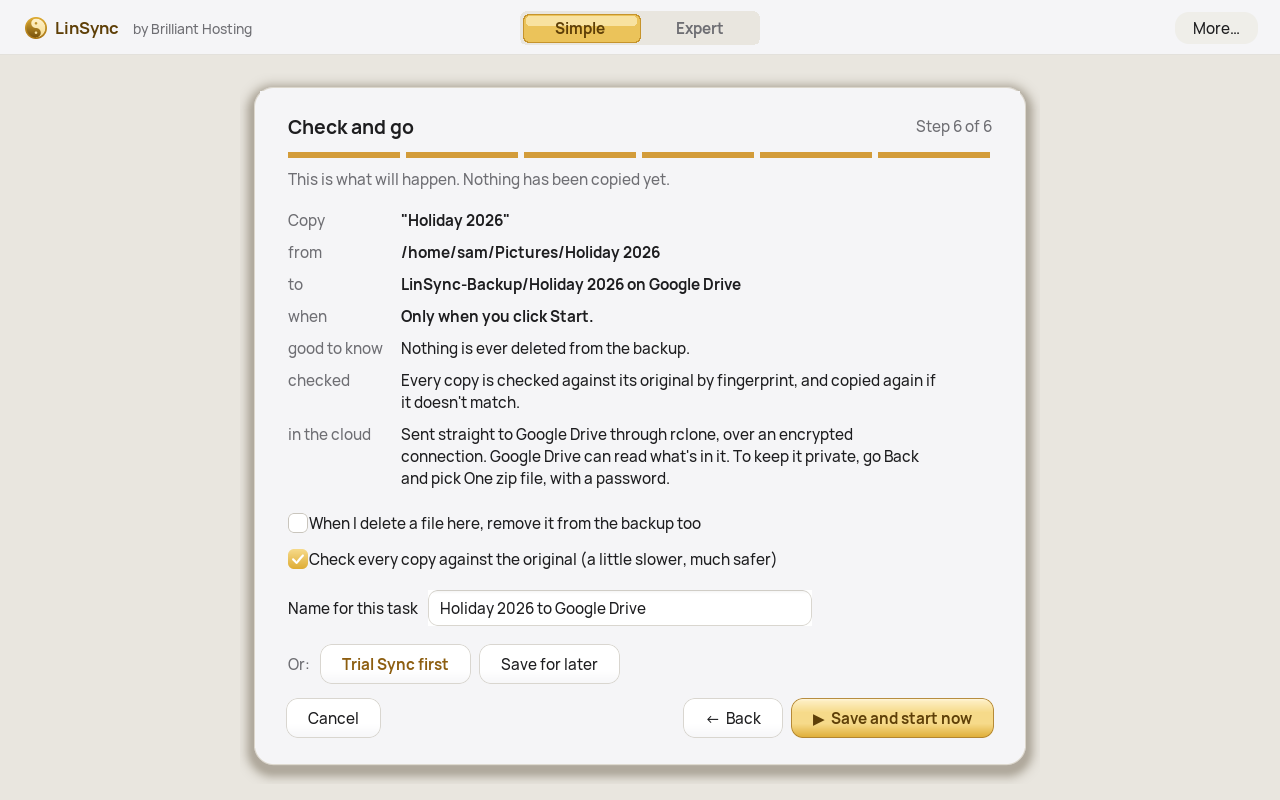
- New backup's last page says it: checked, every copy against its original by fingerprint.
- When a run finishes, the status says all checked, and how many were copied again, if any.
- For a backup where speed matters more, untick Check every copy against the original on New backup's last page, or Check every copy in Expert's middle. From the terminal:
--no-check. - Over SSH and to clouds, files are already protected while they travel. Checking also catches what can go wrong on either computer's disk.
Send it once
Send a file to your other computer, right now
Not everything needs a backup. Downloaded something on this computer and want it on your other one? Open Expert and drag it across. It goes straight there, encrypted on the way: no email attachment, no upload website, no USB stick, and no limit on size.
1. Pick it on the left
The left side starts as this computer (Left side: This computer). Press Places…, choose Downloads (or wherever it is), and click the files or folders you want (tick the boxes to pick several). Pick as many as you like.
2. Your other computer on the right
Above the right side, set Right side to Another computer and connect to it. The first time, you type its password once; after that LinSync connects by itself. At home it goes over your own network, and from anywhere else through Tailscale.
3. Drag it across
Drop it on the folder you want, or press Copy selected. Only what you picked is copied, and if something different with the same name is already there, LinSync asks first. To send it packed or locked, choose As one zip or As password zip before you drag.
Good to know
- Both ways. Drag from the right to bring files back from your other computer.
- Just once. Nothing is saved as a backup unless you press Save as a backup.
- Which computers. You can send from Windows, Mac and Linux. The computer receiving needs to be a Mac or Linux computer with remote login switched on: on that computer, LinSync's Let other computers back up to this one does it for you. Receiving on Windows isn't available yet.
- See the Expert screen, with every part explained.
Zips
Send it as a zip, with or without a password
Before anything is copied, you choose how it arrives: the files as they are, one zip file, or one zip locked with a password. It works in Simple and in Expert, to a drive, a cloud drive or your other computer.
One zip file
Everything you picked, packed into one zip with the date in its name, such as Holiday-2026-10-29.zip. Smaller to send, tidy to keep, and it opens on any computer with what's already built in.
A zip with a password
Locked with AES-256, the strong kind of zip encryption. You type the password twice. To open the zip you need that password, and 7-Zip on Windows, or Keka or The Unarchiver on a Mac: the unzip built into Windows and macOS can't open these.
A backup that runs by itself
In Simple, New backup now asks How should it arrive? A zip backup makes one new zip of the whole folder every time it runs, named with the date and time. Older zips stay until you delete them.
How it works
- Simple: step 4 of New backup, straight after where it goes. Pick a zip, and for a password zip type the password on the same page. A trial run shows the zip it would make. See the screen.
- Expert: the button under Copy selected says As files, As one zip or As password zip. Choose a zip, then drag or copy as usual, and LinSync asks for the zip's name (and the password) first. See the box.
- The zip is made in a temporary folder on your computer, copied across like any other file, then the temporary copy is deleted.
- Files on another computer or in a cloud can be zipped too: LinSync fetches them to this computer first, zips them, sends the zip on, then deletes its temporary copies.
Good to know
- 7-Zip does the locking. It comes inside the Mac and Windows downloads. The Fedora and Ubuntu packages bring in the system's own
7zippackage. - Tested every time. After making a zip, LinSync reads every file in it back against its checksum (a password zip with your password) and checks it's locked as it should be. If not, it throws the zip away and tells you. Then the zip itself is checked once it's arrived.
- Where the password goes. In Expert it's used for that one copy and never kept. A backup that runs by itself keeps it in your Mac's Keychain, or on Linux in the system's password store. Never in LinSync's own files, and never on a command line.
- Plain characters only. A zip password can use letters, numbers, spaces and keyboard symbols, but not accents or other alphabets: other unzip apps would read those differently and never open the zip.
- File names stay visible. A zip locks what's in each file, not its name, so someone without the password can still see what the files are called.
On Windows too, since release 14
A password-zip backup runs by itself with nobody there to type the password, so the password has to be kept somewhere safe. On a Mac that's the Keychain, on Linux the system's password store, and since release 14, on Windows it's Windows' own Credential Manager. So Simple can make password-zip backups on Windows too. Password zips sent from Expert still ask for the password each time and don't keep it. The Windows installer is new, and hasn't been tried on many PCs.
New: get a file back
Get a replaced or deleted file back
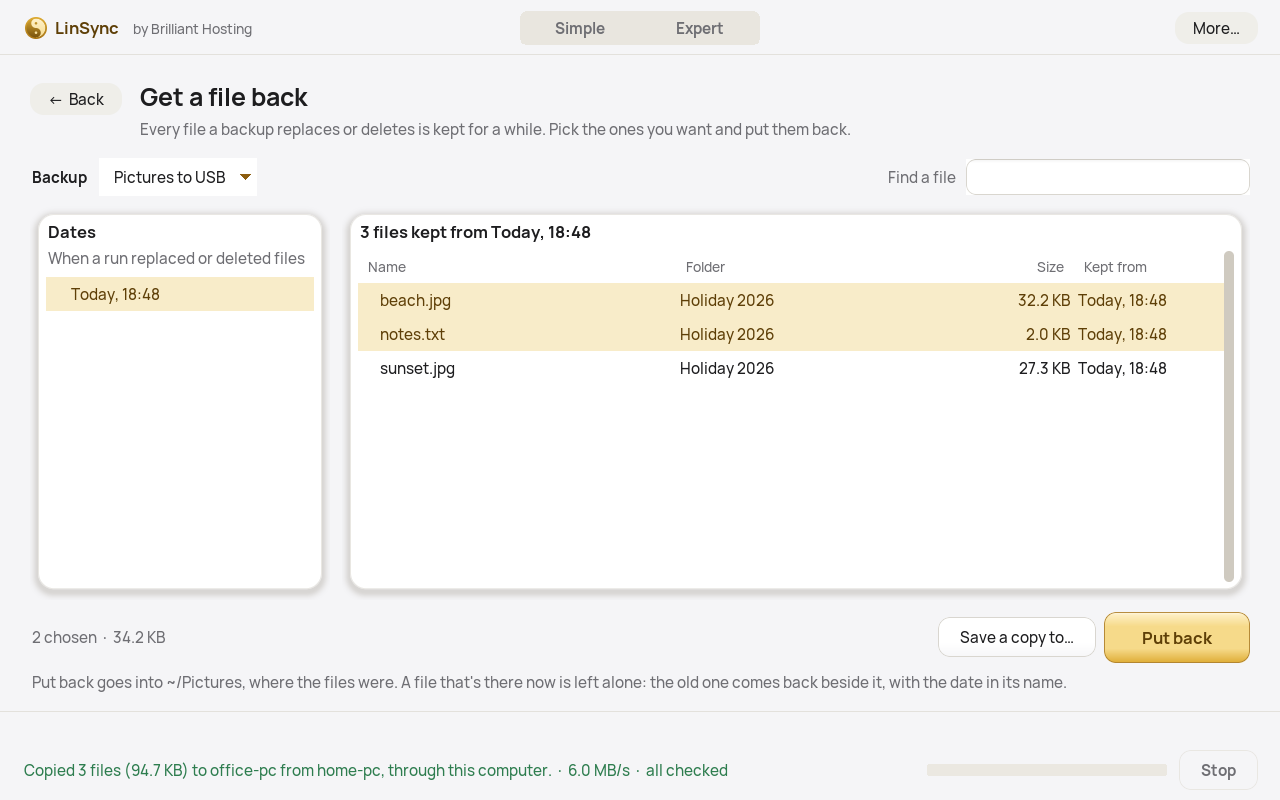
When a backup replaces a file, or deletes one because you deleted it, the old one isn't thrown away: it's kept for 30 days, sorted by the date and time of that run. Now there's a screen for getting it back. Click More…, then Get a file back, or choose it from a backup's ••• menu.
How it works
- Pick the backup, then a date on the left: the files that run kept are listed on the right.
- Or search: type part of a name in Find a file, and every date is searched.
- Put back returns them where they were. A file with that name that's there now is left alone: the old one comes back beside it, with the date in its name, like
report (1 Nov 14.03).docx. - Save a copy to… puts them in any folder instead.
- It works for drives, your other computers and clouds alike, and each file is checked against the kept one before it's given its name.
New: locked clouds
Lock what goes to the cloud
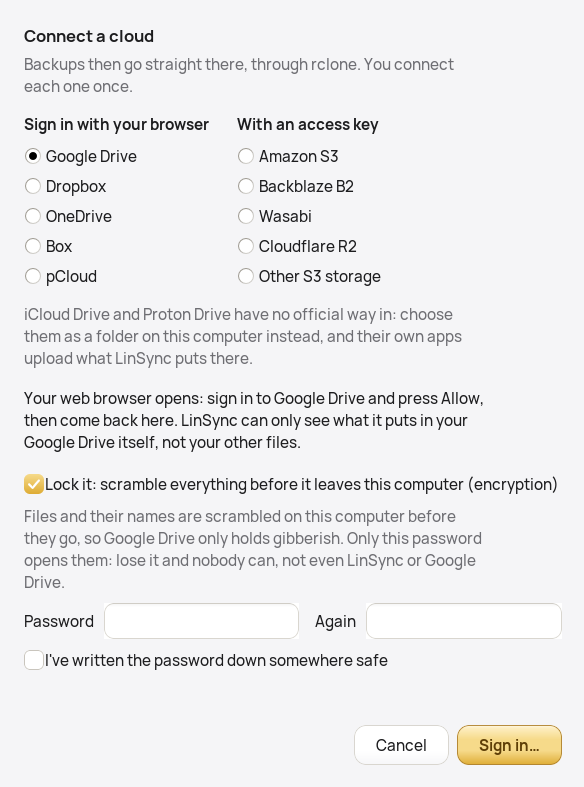
Tick Lock it when you connect a cloud, or press Make a locked folder in it… in Cloud services. Your files, and their names, are then scrambled on this computer before they leave it, so Google Drive, Dropbox or whoever only ever hold gibberish. It shows up as a cloud of its own, for example Google Drive (locked): choose that for a backup.
Good to know
- Write the password down. Only it opens the backups: lose it, and nobody can open them, not even LinSync or the cloud.
- Still checked. Every copy is still compared with the original, through rclone's own check for encrypted copies.
- Readable anywhere. It's rclone's standard encryption with just your password, so the files can be opened on any computer with rclone, even without LinSync.
New: warnings and new releases
It tells you when something needs a look
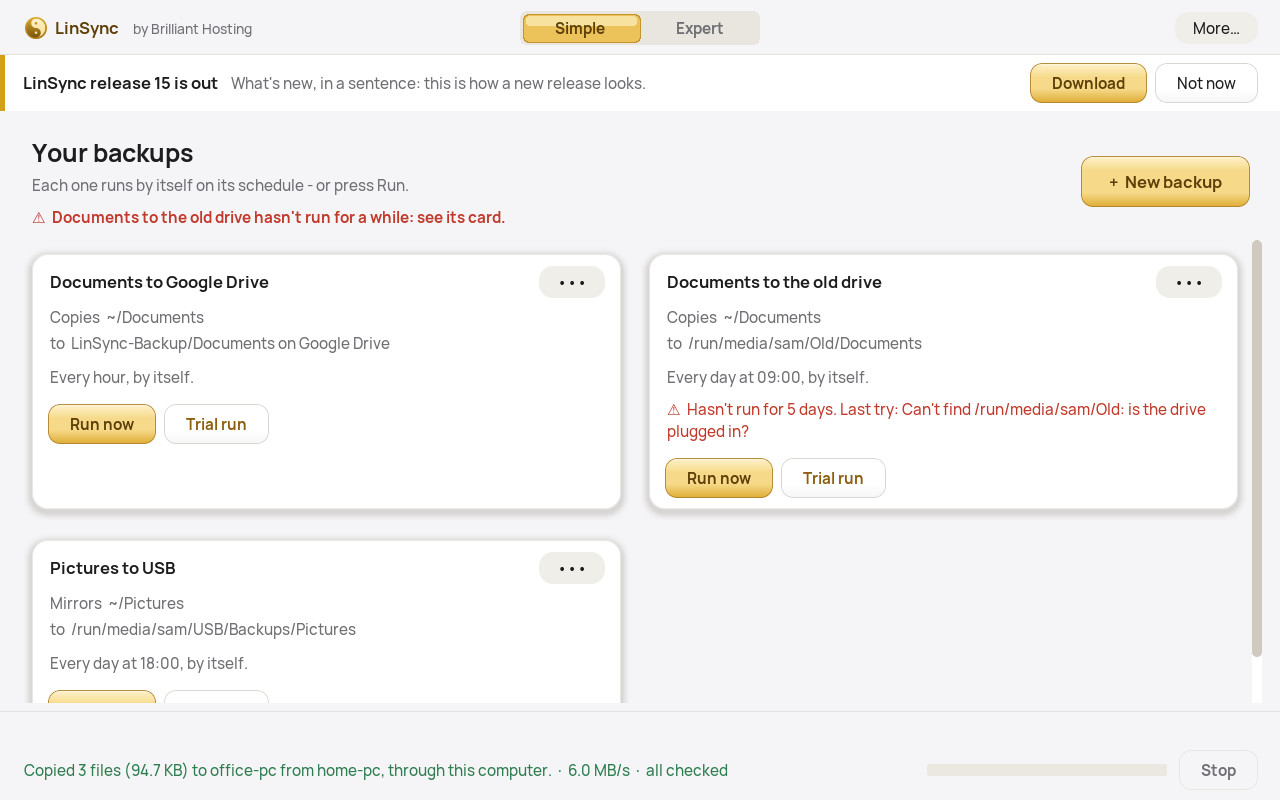
A backup that runs by itself can quietly stop: the drive isn't plugged in, the other computer is off, or the laptop stays shut. Now, when a scheduled backup hasn't run for three days (ten for weekly ones), its card gets a red line saying why, and you get a notification once a day until it runs again.
A new release is out
Once a day LinSync reads one small file from linsync.co.uk to see if there's a newer release, and if there is, a strip under the top bar says so, with Download and Not now. Nothing about you, your computer or your files is sent. You can switch it off in Settings.
New: settings
A speed limit, and waiting for the charger
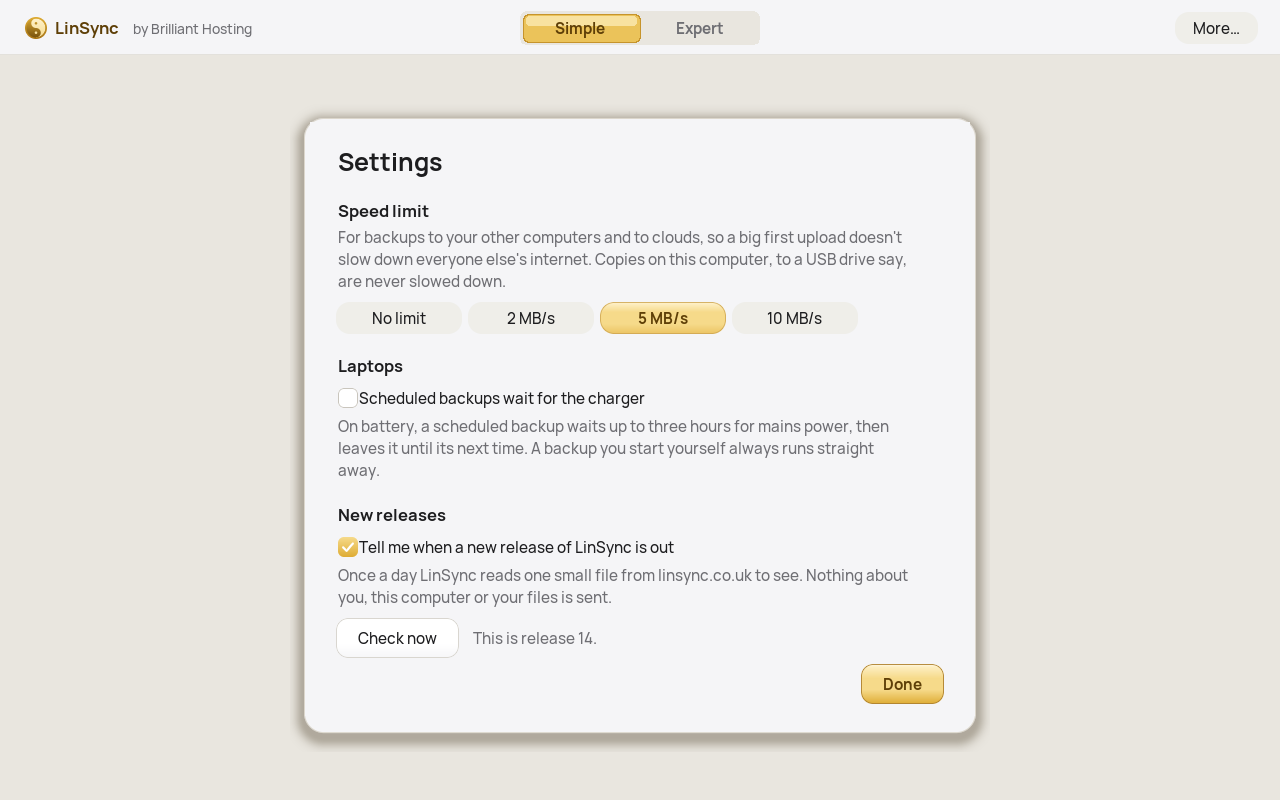
Click More…, then Settings.
What they do
- Speed limit: No limit, 2, 5 or 10 MB/s for backups to your other computers and to clouds, so a big first upload doesn't slow down everyone else's internet. Copies on this computer, to a USB drive say, are never slowed down.
- Scheduled backups wait for the charger: on a laptop on battery, a scheduled backup waits up to three hours for mains power, then leaves it until its next time. A backup you start yourself always runs straight away.
- Tell me when a new release is out: on or off.
In detail
Four ways to copy
Every backup uses one of these. Copy, Mirror and Move work in either direction.
New and changed files are copied across. Nothing is ever deleted.
The destination becomes an exact copy. Extra files there go to the archive.
Files are copied, each copy is checked, and only then is the original removed.
Both folders kept the same. Changes, new files and deletions go both ways, because LinSync remembers the last sync.
Under the bonnet
How a run works
The same four steps every time, whether it's a USB stick in the next room or a computer on the other side of the country.
Safe by default
- Trial run lists every action before anything changes.
- Nothing is erased. Replaced and deleted files move to
.linsync_archive/<date>/, kept for 30 days or as long as you choose. - No half-written files. An interrupted run leaves nothing half-done.
- Missing folders stop the run, so an unplugged drive never looks like "everything was deleted".
- Safety stop: a run that would delete too large a share of the files halts on its own.
- Big files resume (4 MB and up) after a cancel or a dropped connection.
- Conflicts: newer wins, left wins, right wins, keep both, or skip.
- Every copy checked: its SHA-256 fingerprint against the original's, on by default. A copy that doesn't match is made again. More.
- Comparing: date and size (fast) or SHA-256 checksum, to decide what needs copying.
- Rules: exclude and include patterns, skip hidden files, minimum and maximum sizes.
Runs by itself
- Schedules: hourly, daily, weekly, at a set time, or every N minutes.
- Uses each system's own scheduler: systemd timers (or cron) on Linux, launchd on a Mac, Task Scheduler on Windows. LinSync doesn't need to be open.
- Watch mode:
linsync watchre-syncs whenever something changes. - Groups of tasks, plus your own commands to run before and after each one.
- Desktop notifications, and a log and run history for every task.
Computer to computer
Your other computer, at home or anywhere
No server, no account, no monthly fee. Files go straight from one of your computers to the other, encrypted on the way. At home that happens over your own network; away from home, Tailscale carries it. And in Expert, LinSync can copy between two of your other computers, passing the files through the one you're using (how).
Type a password once
The first time you connect, you type the other computer's password. After that LinSync connects by itself, scheduled runs included.
Fast with small files
LinSync has its own SFTP client running over the system's ssh. Small files go in batches of up to 64, big ones stream at full speed: 600 small files took 1.7 seconds over a 30 ms link in testing.
Tailscale-aware
Find my computers lists your Tailscale devices. If Tailscale SSH asks you to confirm in a browser, LinSync opens the page and carries on once you approve.
Away from home? Add Tailscale.
Tailscale gives each of your computers a name that works from anywhere, with no router settings and no port forwarding. Install it on both computers and sign in; LinSync's More menu has Set up Tailscale, and the receiving wizard offers it too. Then press Find my computers, pick the one you want, and back up as if it were next door. Tailscale has a free plan for personal use.
Tailscale is a separate service. LinSync is not made by, or connected with, Tailscale Inc.
And also
More than folder backups
Space
Inside LinSync (More…, then Space): click the folders and drives to look at, and see them as a ring chart. Zoom into folders, find the biggest items, drag a slice onto Delete (bin or permanent) or onto Copy / Move / Sync to turn it into a backup. System files and whole drives are protected.
System backup
Linux: a bootable copy of the whole computer on a USB drive that keeps itself up to date, encrypted with LUKS when your computer is. Start from it to test it, take single files back, or restore everything (UEFI with GRUB and dracut).
Mac and Windows: a home-folder backup (documents, photos, settings, mail) with older versions kept for 7 to 365 days and a Restore button.
Cloud-drive folders too
As well as going straight to the cloud: on a Mac, Proton Drive, Google Drive, OneDrive, Dropbox and iCloud Drive folders show up in Places and in the wizard. On Linux, folders such as ~/Dropbox and anything mounted with rclone mount. File dates are kept, so the next run copies only what's changed.
From the terminal
Everything the window does, you can script.
linsync new "Docs to USB" --left ~/Documents \
  --right /media/$USER/USB/Documents --mode backup_lr
linsync preview "Docs to USB"   # what would happen; changes nothing
linsync run "Docs to USB"
linsync schedule "Docs to USB" daily
linsync watch "Docs to USB"     # keep syncing as files change
linsync list                    # every task and when it last ran
Plain, open code
- Written in Python with Tkinter: no extra packages to install.
- The same code on Windows, Mac and Linux; the parts that differ live in one file.
- Over 200 automatic tests cover every mode, conflicts, the archive, the safety stop, SFTP, resuming, clouds and checking, including copies spoiled on purpose to make sure they're caught.
- Free software under the GNU GPL, version 3 or later.
- Prefer the original window?
linsync classicis still there.