LinSync Download

The tour

Every screen, and what each part does

These are real LinSync screens. Point at a number (or tap it) to see which part of the window it means.

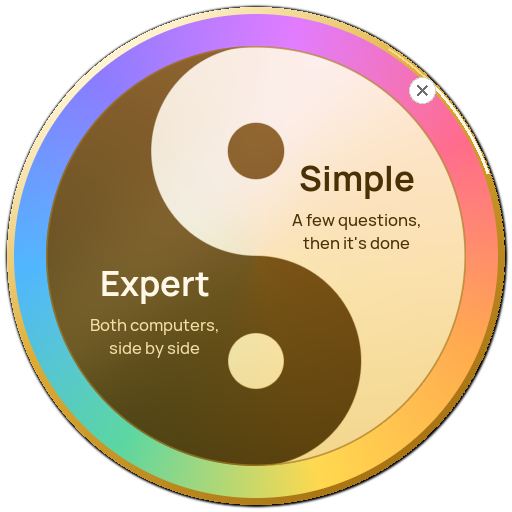
The start screen: a yin-yang with Simple on the light half and Expert on the dark half.

The start screen

LinSync opens with a single circle, so the first choice is easy: do you want it done for you, or do you want to drive?

  1. 1SimpleThe light half. A short wizard asks a few plain questions and sets up a backup that runs by itself.
  2. 2ExpertThe deep half. Both computers side by side: drag files across, or match whole folders.
  3. 3CloseAppears when the pointer is over the circle. You can also press S, E or Esc.
  4. 4The ringA glint of light runs round it as it opens, and the half under the pointer lights up. On a Mac the circle floats on its own and can be dragged about.
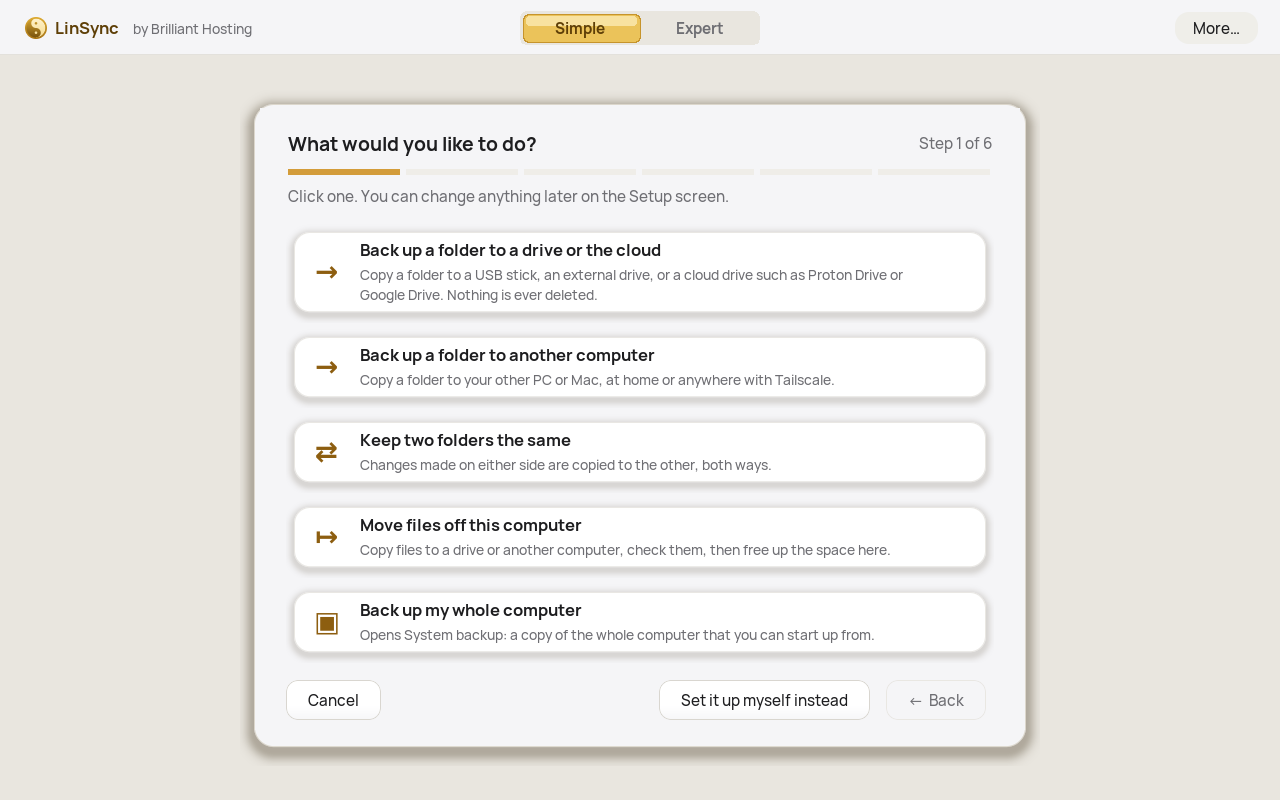
The wizard, step 1 of 6: What would you like to do? Five choices are listed.

The wizard

Six steps, in plain English: what to do, what to copy, where it goes, how it arrives (as files or a zip), how often, then a summary of exactly what will happen.

  1. 1Progress barShows which of the six steps you're on. Back lets you change an earlier answer.
  2. 2To a drive or the cloudCopies a folder to a USB stick, an external drive or a cloud drive. Nothing is ever deleted.
  3. 3Keep two folders the sameTwo-way sync: changes made on either side are copied to the other.
  4. 4Back up my whole computerOpens System backup: a bootable copy on Linux, a home-folder backup on a Mac or Windows PC.
  5. 5Set it up myself insteadSkips the questions and opens Expert, with every setting in reach.
  6. 6Simple | ExpertThe switch at the top slides between the two at any time.
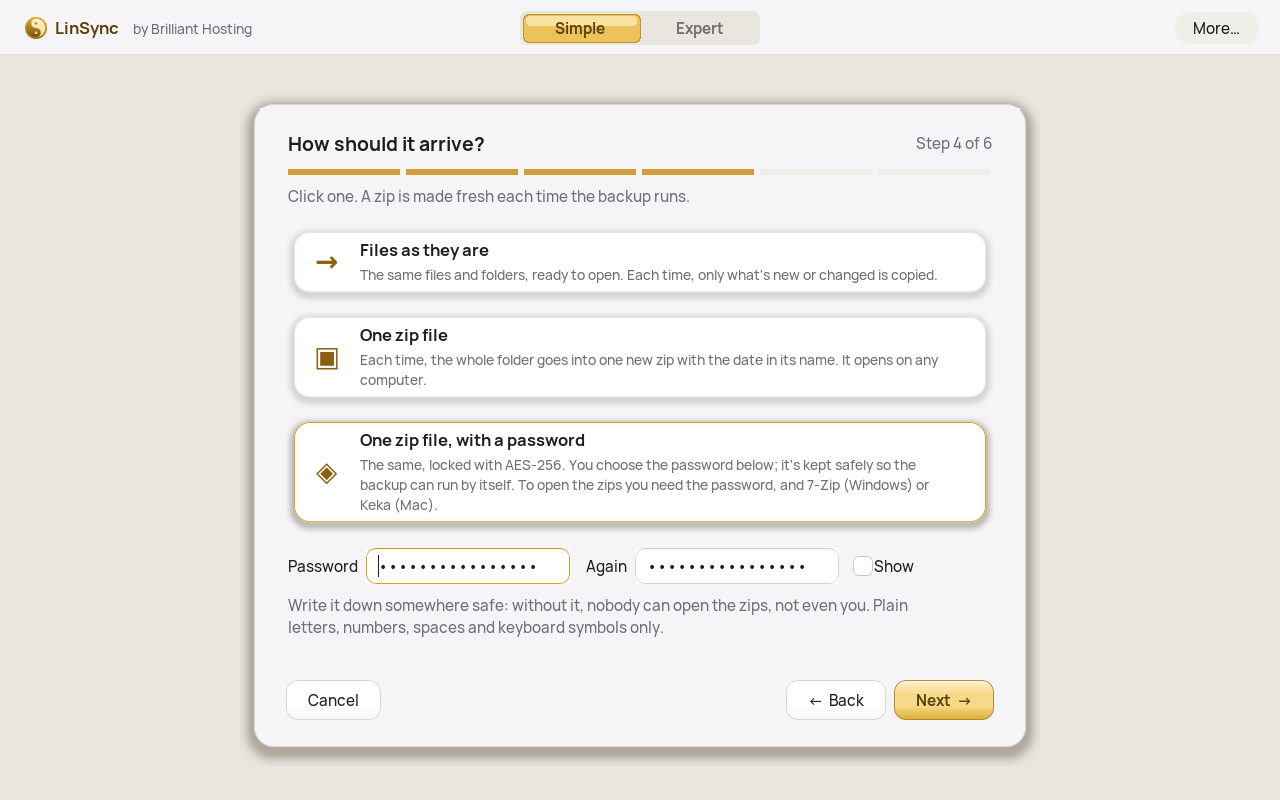
The wizard, step 4 of 6: How should it arrive? Files as they are, One zip file, or One zip file with a password, which is chosen, with the password typed twice below.

How it arrives: files or a zip

New in release 10. Straight after "Where should it go?", the wizard asks how the backup should arrive. Keeping two folders the same and moving files can't be zips, so for those this step is skipped.

  1. 1Step 4 of 6The new step. Back takes you to where it goes.
  2. 2Files as they areAs before: the same files and folders, ready to open. Each time, only what's new or changed is copied.
  3. 3One zip fileEach run makes one new zip of the whole folder, named with the date and time, in the usual place. It opens on any computer.
  4. 4One zip file, with a passwordThe same, locked with AES-256. 7-Zip does the locking: it comes with the Mac and Windows downloads, and is a package on Linux. Not on Windows yet: see the Windows exception.
  5. 5The password, twiceKept in your Mac's Keychain, or Linux's password store, so the backup can run by itself. Never in LinSync's files.
  6. 6Write it downWithout it nobody can open the zips, not even you. Letters, numbers, spaces and keyboard symbols only.
  7. 7NextThen how often, and "Check and go". A trial run shows the zip it would make.
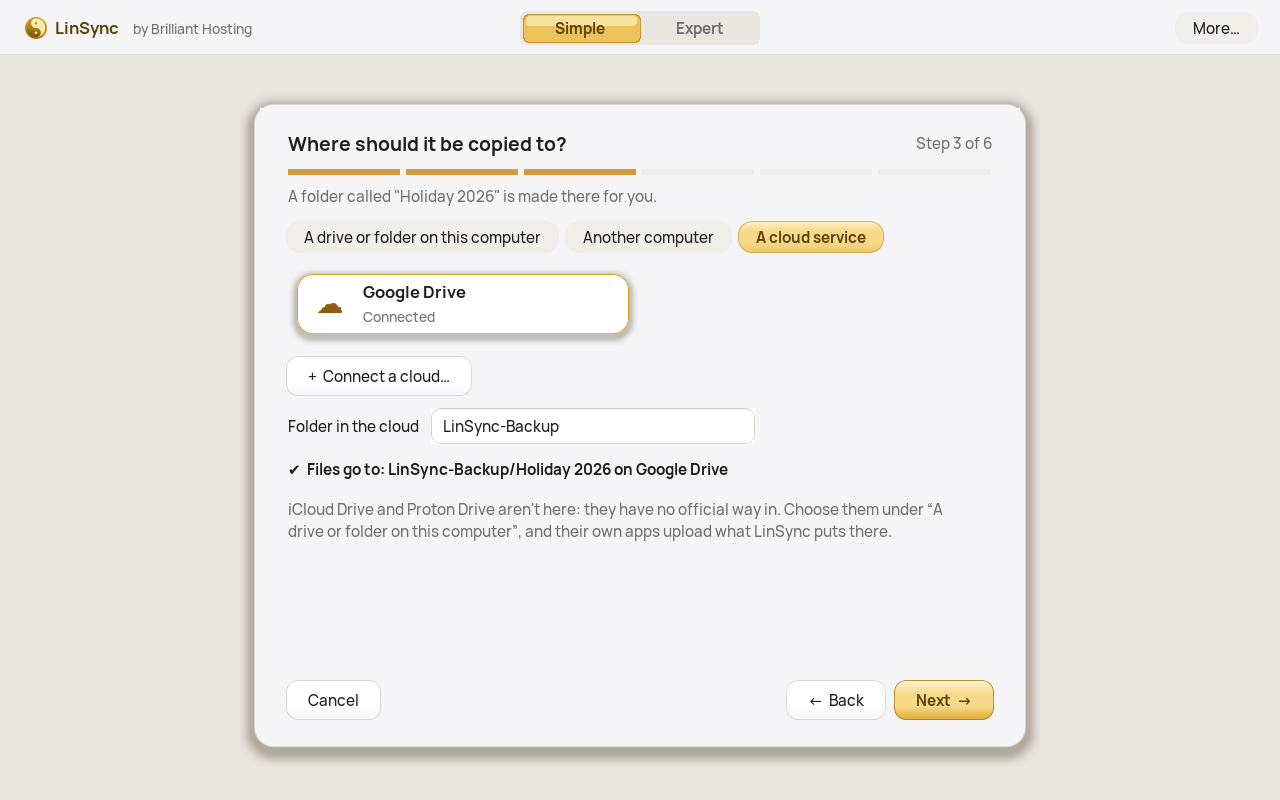
New backup, step 3 of 6: A cloud service chosen, a Google Drive card marked Connected, Connect a cloud, the folder in the cloud and where the files will go.

A cloud service

New backup's third step has a new choice. A backup to the cloud goes straight there, with no cloud app in between.

  1. 1A cloud serviceBeside a drive or folder here and another computer.
  2. 2Your cloudsEach cloud you've connected is a card. Click one.
  3. 3Connect a cloud…Adds another: a browser sign-in (Google Drive, Dropbox, OneDrive, Box, pCloud) or an access key (Amazon S3, Backblaze B2 and others).
  4. 4Folder in the cloudLinSync-Backup to start with. A folder for each backup goes inside it.
  5. 5Files go toWhere it'll end up, in words.
  6. 6iCloud Drive and Proton DriveNo official way in: choose them as a folder on this computer, and their own apps upload what LinSync puts there.
  7. 7NextThen as files or a zip, how often, and Check and go.
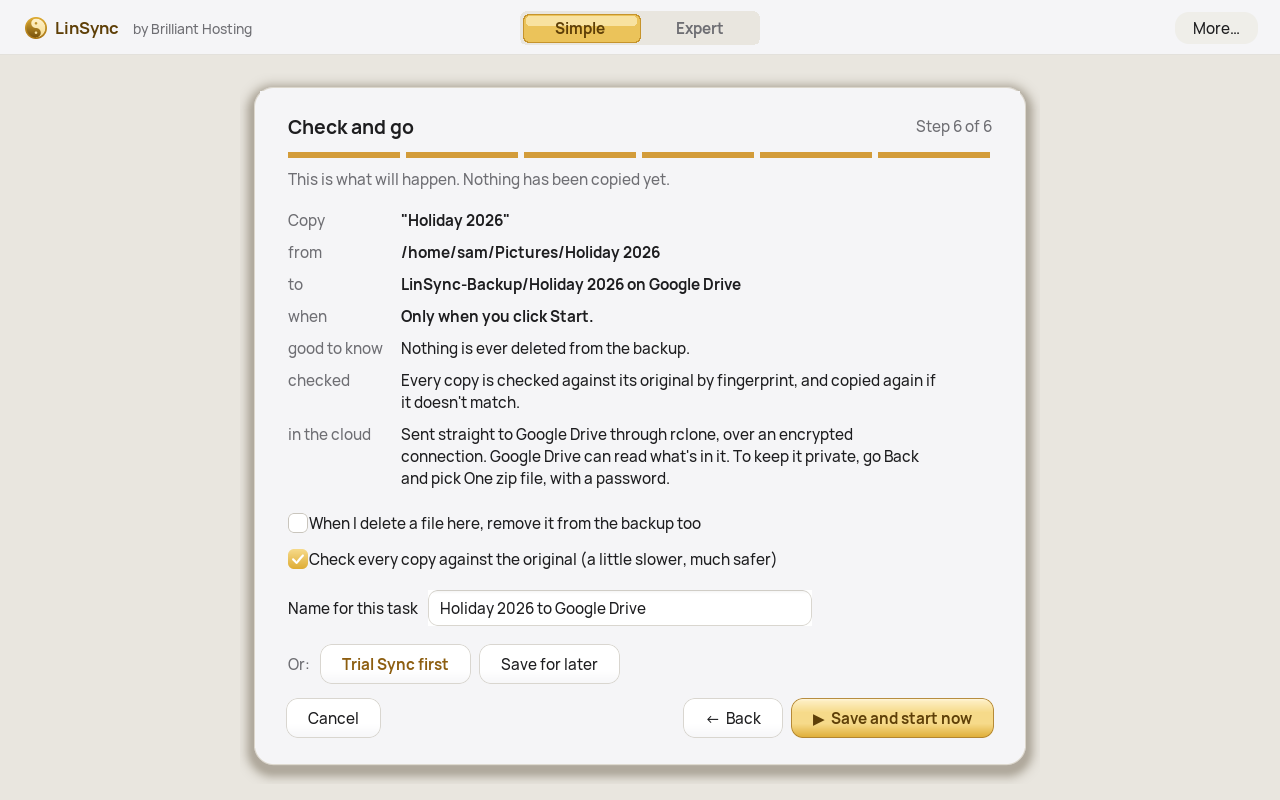
New backup's last page, Check and go: what will be copied and where, a line saying every copy is checked against its original, a line about what the cloud can read, and a ticked box, Check every copy against the original.

Check and go

The last page of New backup says what will happen, in plain words, before anything is copied.

  1. 1checkedNew: every copy is checked against its original by fingerprint, and copied again if it doesn't match.
  2. 2in the cloudFor a cloud backup: what the cloud company can read, and how to keep it private (a password zip).
  3. 3Remove deleted files tooTicked, the backup mirrors this folder: what you delete here goes to the backup's archive.
  4. 4Check every copyTicked to start with. Untick it for a backup where speed matters more.
  5. 5NameMade from your answers; yours to change.
  6. 6Trial Sync first, Save for laterSee the whole plan first, or keep it for another day.
  7. 7Save and start nowSaves the backup and runs it.
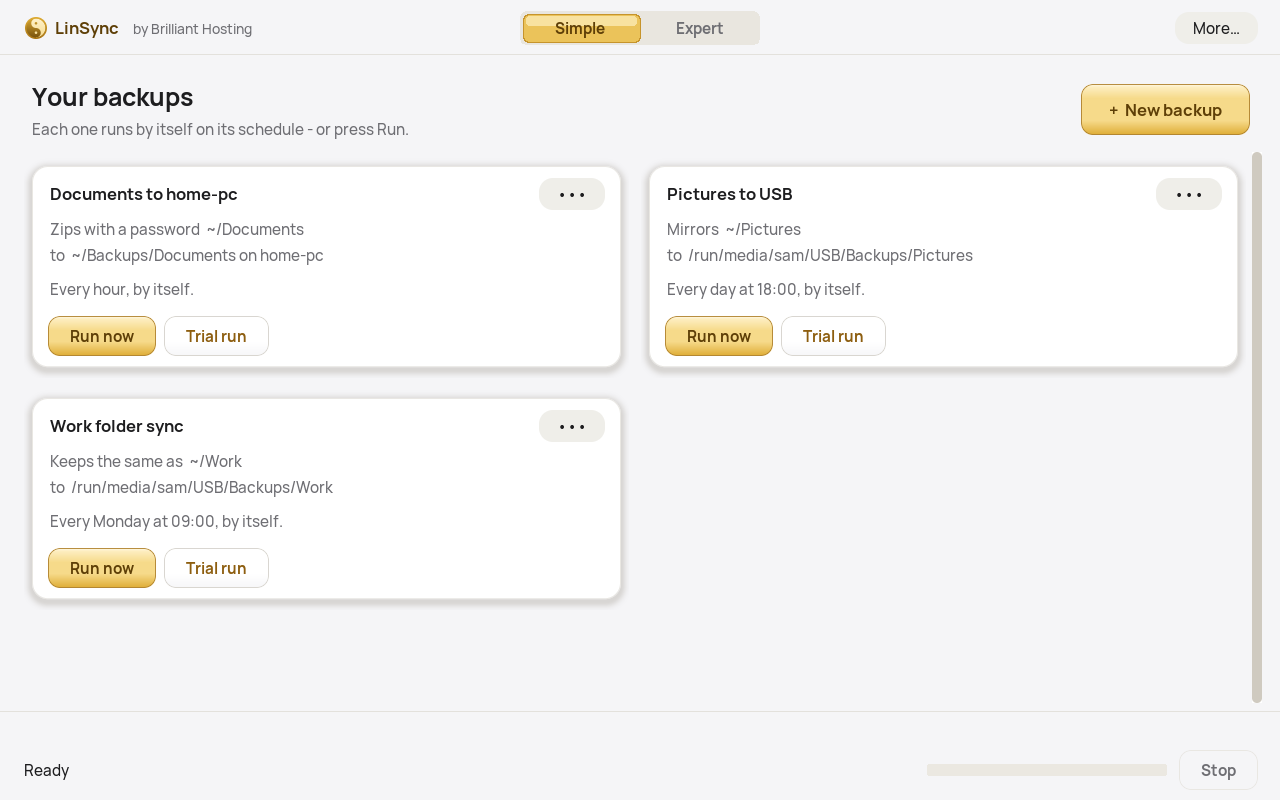
Simple mode: three backup cards. Documents to home-pc zips with a password, Pictures to USB mirrors, Work folder sync keeps two folders the same. Each has Run now and Trial run buttons.

Simple: your backups

Each backup is a card that says, in words, what it does and when. Most people never need more than this screen.

  1. 1The backup's nameSuggested by the wizard, and yours to change.
  2. 2What it does"Copies", "Mirrors", "Zips", "Zips with a password" or "Keeps the same as", from which folder, to which folder, and on which computer.
  3. 3When it runsEvery hour, every day at a set time, weekly, or only when you press Run.
  4. 4Run nowDoes it straight away, with a progress bar on the card.
  5. 5Trial runLists every change it would make, and changes nothing.
  6. 6The ••• menuDelete it, open its files, or open it in Expert to fine-tune it.
  7. 7New backupStarts the wizard again for another folder.
  8. 8Status barWhat's running, how far it's got and how fast, with a Stop button.
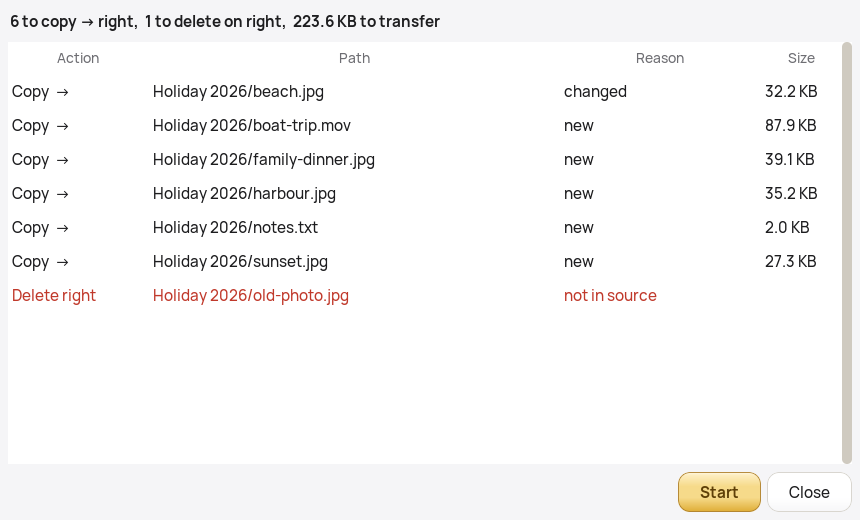
A trial run list: 6 to copy to the right, 1 to delete on the right, 223.6 KB to transfer. Each row shows the action, the path, the reason and the size.

Trial run

Before anything changes, LinSync can show you its whole plan. Nothing is copied or removed until you press Start.

  1. 1The summaryHow many files go each way, how many would be removed, and how much data that is.
  2. 2ActionCopy to the right, copy to the left, or delete. Every file gets its own row.
  3. 3ReasonWhy: new, changed, or not in the source any more.
  4. 4Removals in redOnly Mirror, Move and Sync ever remove files, and a "deleted" file goes into the archive, not the bin.
  5. 5SizeOf each file, so a surprise 40 GB video stands out.
  6. 6StartCarries out exactly this plan. Close leaves everything as it is.
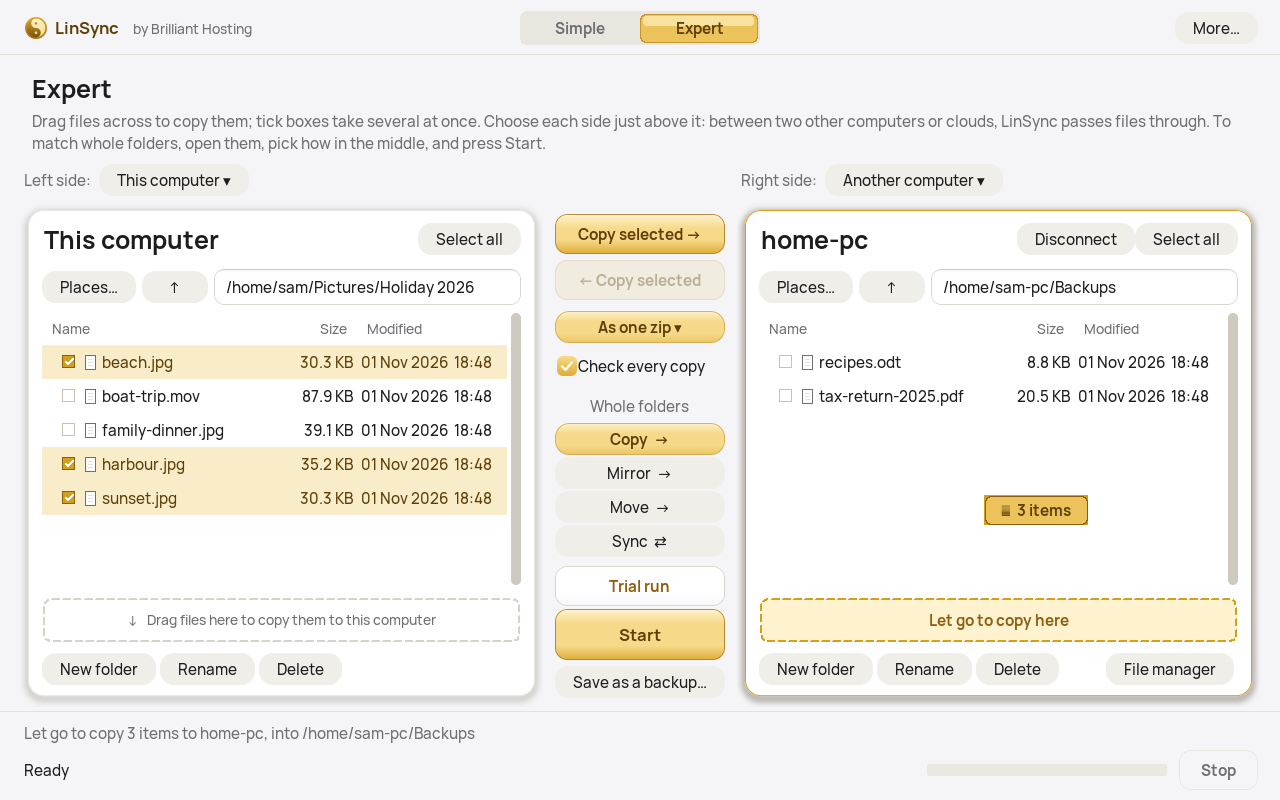
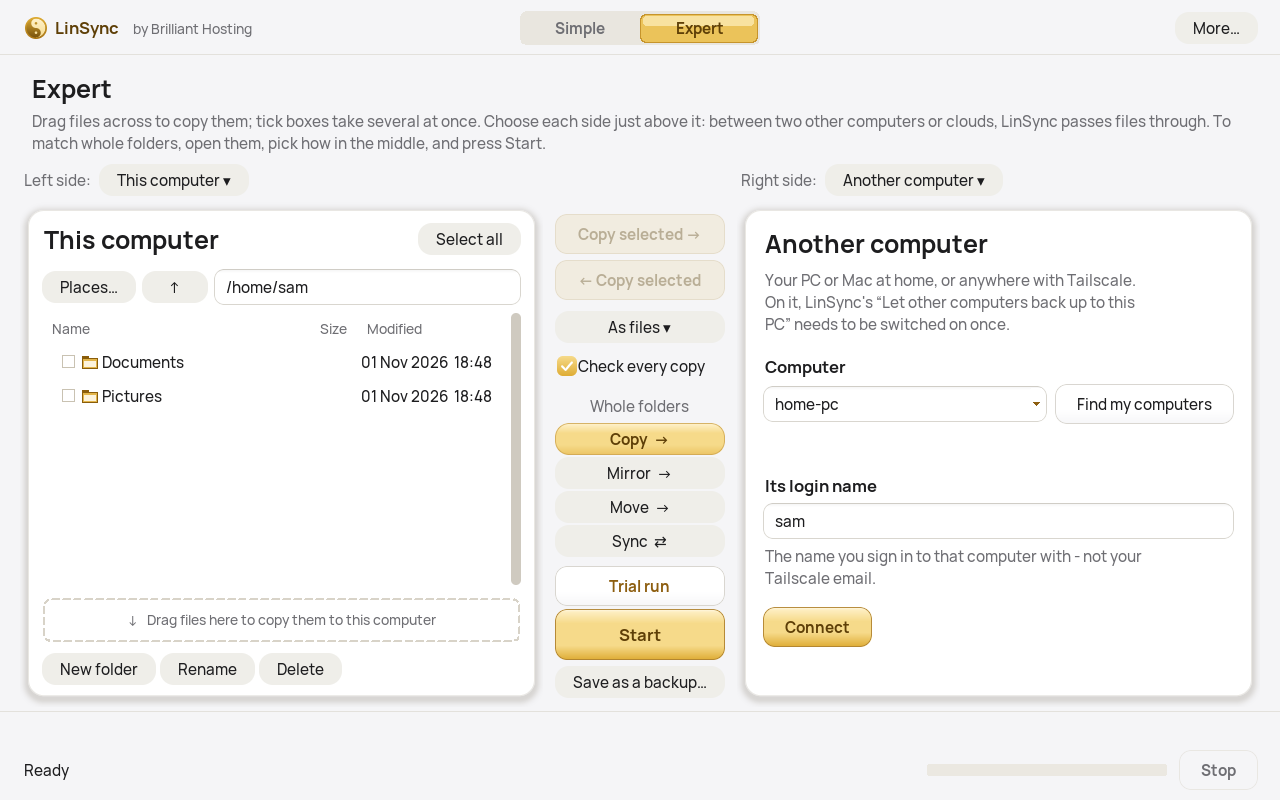
Expert: this computer on the left with three pictures ticked, being dragged across as one zip to home-pc on the right, which glows gold: let go to copy here.

Expert: two sides, side by side

No task list to learn. Choose what each side is, then move things between them.

  1. 1Left sideWhat this side is: This computer, Another computer or A cloud. New: the left used to be this computer only.
  2. 2Places and the pathJump to Home, Documents, drives and cloud drives, or type a folder.
  3. 3Selected filesHighlighted in gold. Pick as many as you like.
  4. 4DraggingDrag files or folders across; the badge counts what you're carrying and the folder under it lights up.
  5. 5"Let go to copy here"A dashed gold strip shows where they'll land.
  6. 6Copy selectedThe same thing as dragging, with a button, in either direction.
  7. 7As files, As one zip, As password zipHow copies go. Gold when it's a zip; click it to choose. With a zip, the copy asks for its name (and the password) first.
  8. 8Check every copyNew: each copy's fingerprint is compared with the original's, and a copy that doesn't match is made again. Ticked to start with.
  9. 9Whole foldersOpen a folder on each side and pick Copy, Mirror, Move or Sync (with this computer on the left).
  10. 10Trial run, Start, Save as a backupPreview it, do it, or keep it as a backup that runs on a schedule.
  11. 11Right sideThis computer (a second folder or drive), Another computer or A cloud. Here, home-pc.
  12. 12DisconnectBack to choosing what this side is.
  13. 13File managerOn Linux: opens the other computer's folder in your own file manager too.
  14. 14Tick boxesClick a box to pick that file as well as the others, with no keys to hold. Drag any picked one and they all go.
  15. 15Select allTicks everything in that folder. Cmd-A (Ctrl-A on Windows and Linux) does the same.
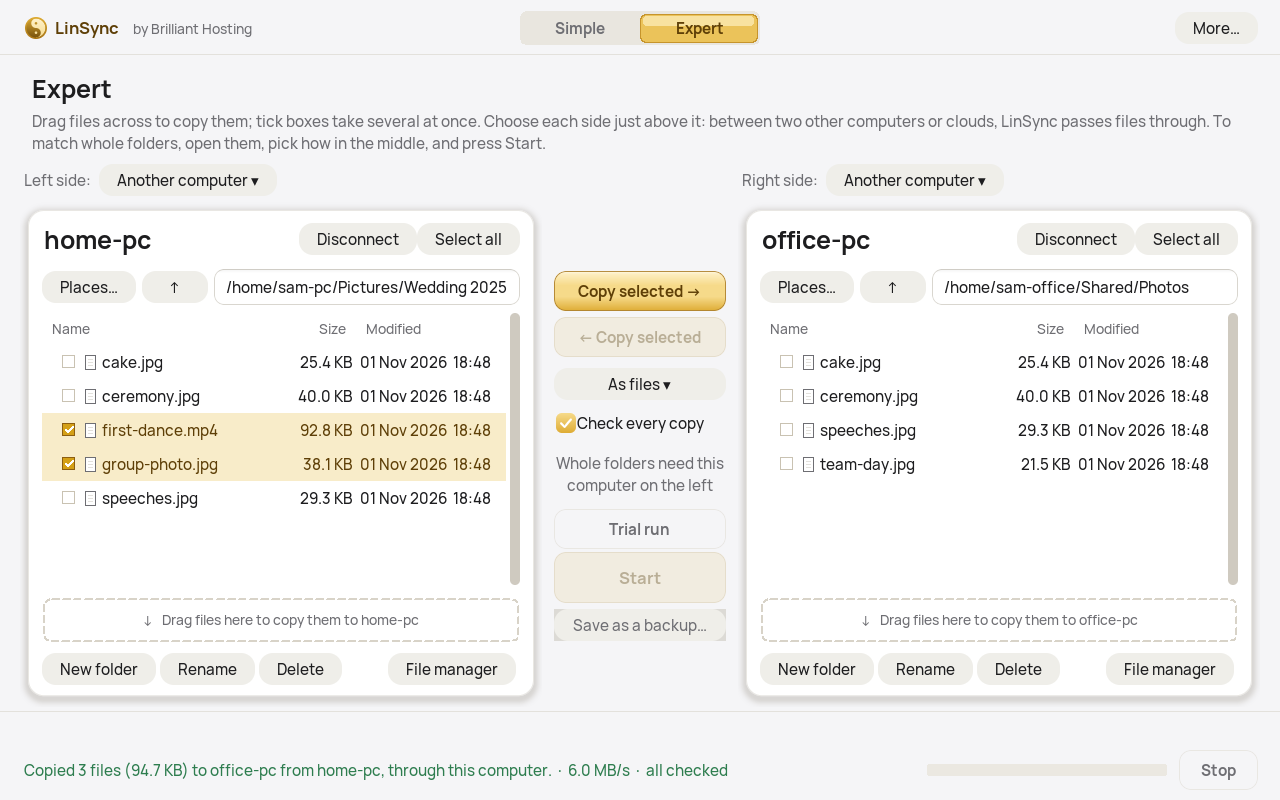
Expert with Left side: Another computer, home-pc, and Right side: Another computer, office-pc. Three wedding photos have arrived on office-pc; the status line says Copied 3 files to office-pc from home-pc, through this computer, all checked.

Computer to computer

Neither side is this computer here: home-pc is on the left, office-pc on the right, and LinSync passes what you copy from one to the other.

  1. 1Left side: Another computerThen which one: here, home-pc. Find my computers lists your Tailscale devices.
  2. 2home-pc's filesBrowse it like your own: Places, the path, New folder, Rename and Delete all work over there.
  3. 3SelectedTwo more picked, ready to go.
  4. 4Copy selectedOr drag them across. As files, one zip or a password zip.
  5. 5Check every copyEach copy is checked at both hops: into this computer, and out to office-pc.
  6. 6Whole folders need this computer on the leftCopy, Mirror, Move and Sync make way for this note. Between two other computers, select and copy.
  7. 7Right side: Another computerHere, office-pc. It could be a cloud instead.
  8. 8ArrivedThe three photos copied a moment ago, with their dates kept.
  9. 9The status lineCopied, through this computer, all checked. The temporary copies on this computer have already gone.
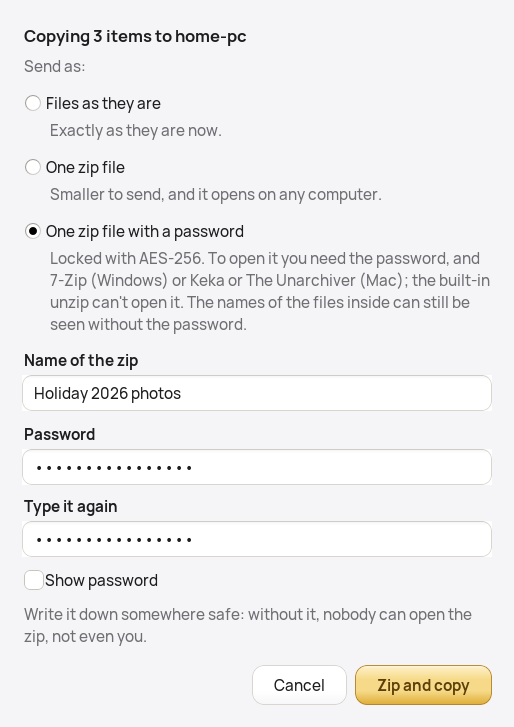
The box a password zip asks first: Copying 3 items to home-pc, One zip file with a password chosen, the zip's name, and the password typed twice.

Sending a zip from Expert

With As one zip or As password zip chosen, dragging across or pressing Copy selected asks this first. As files copies straight away, as before.

  1. 1What's going whereHere, three pictures to the other computer.
  2. 2Files as they areChanged your mind? Copy them as they are instead.
  3. 3One zip fileSmaller to send, and it opens on any computer.
  4. 4One zip file with a passwordLocked with AES-256. The box says what's needed to open it, and that file names still show.
  5. 5Name of the zipThe folder's name and today's date to start with; yours to change.
  6. 6The password, twiceUsed for this copy only, and never kept, so it works on Windows too.
  7. 7Zip and copyLinSync makes the zip, checks every file in it is locked with your password, sends it, then deletes its temporary copy.
Expert before connecting: Right side: Another computer asks for the other computer's name and login, with Find my computers and Connect buttons.

Connecting to your other computer

LinSync talks to your other Mac or PC over SSH, the secure login built into every Mac and Linux computer. At home that's your own network; anywhere else, Tailscale joins the dots.

  1. 1ComputerIts name on your network or on Tailscale, such as home-pc.
  2. 2Find my computersLists your Tailscale devices, shows whose account each one is on, and fills in the login for you.
  3. 3Its login nameThe name you sign in to that computer with, not your Tailscale email.
  4. 4ConnectAsks for that computer's password once. After that LinSync connects by itself, scheduled runs included.
  5. 5Right sideAnother computer, or switch it to This computer (a second folder or drive) or A cloud.
  6. 6Your side stays usableBrowse and pick what to send while you connect.
  7. 7Left sideCan be another computer too, connected the same way, on that side.
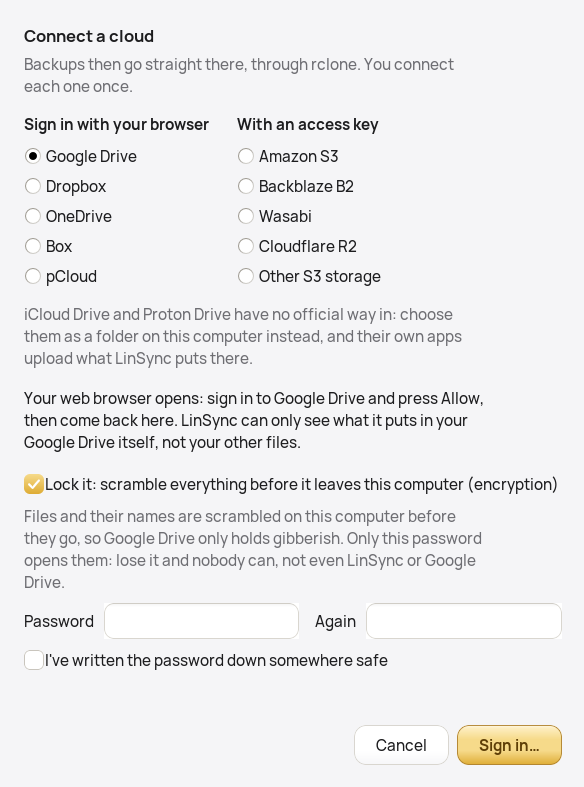
The Connect a cloud window: Google Drive, Dropbox, OneDrive, Box and pCloud by browser sign-in, Amazon S3, Backblaze B2, Wasabi, Cloudflare R2 and other S3 storage by access key, and Lock it ticked, with two password boxes.

Connect a cloud

From New backup, Expert or Cloud services. You connect each cloud once; after that its backups run by themselves.

  1. 1Sign in with your browserGoogle Drive, Dropbox, OneDrive, Box and pCloud. Google Drive asks only for the files LinSync creates.
  2. 2With an access keyAmazon S3, Backblaze B2, Wasabi, Cloudflare R2 and other S3 storage: the key, its secret and the bucket.
  3. 3iCloud Drive and Proton DriveNo official way in, so they're used as folders on this computer instead.
  4. 4Sign in…Your browser opens on the service's own page. Sign in, press Allow, and come back. LinSync never sees your password, and the key it's given stays on this computer.
  5. 5Lock itNew: everything is scrambled on this computer before it goes, file names too. The cloud shows up again as, say, Google Drive (locked).
  6. 6The passwordTyped twice, and a tick to say you've written it down: only it opens the backups again.
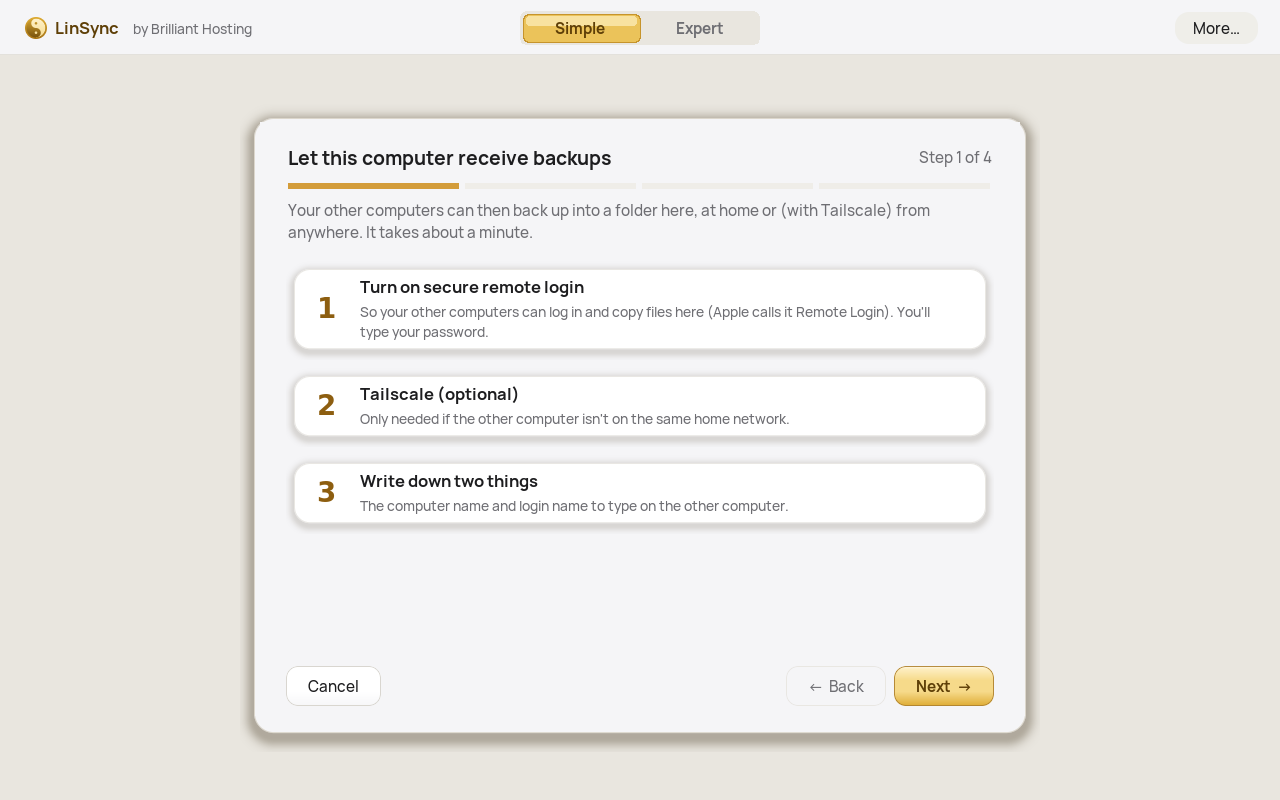
The 'Let this computer receive backups' wizard, step 1 of 4: turn on secure remote login, Tailscale (optional), write down two things.

Letting other computers back up here

Run this once on the computer that will hold the backups. It takes about a minute, and there's nothing else to install on it.

  1. 1Turn on secure remote loginSwitches on SSH (Apple calls it Remote Login). You type your password to allow it.
  2. 2Tailscale (optional)Only needed if your other computer isn't on the same home network. LinSync offers to set it up.
  3. 3Write down two thingsThis computer's name and login, to type on the other one.
  4. 4NextOne step at a time, with Back if you change your mind.
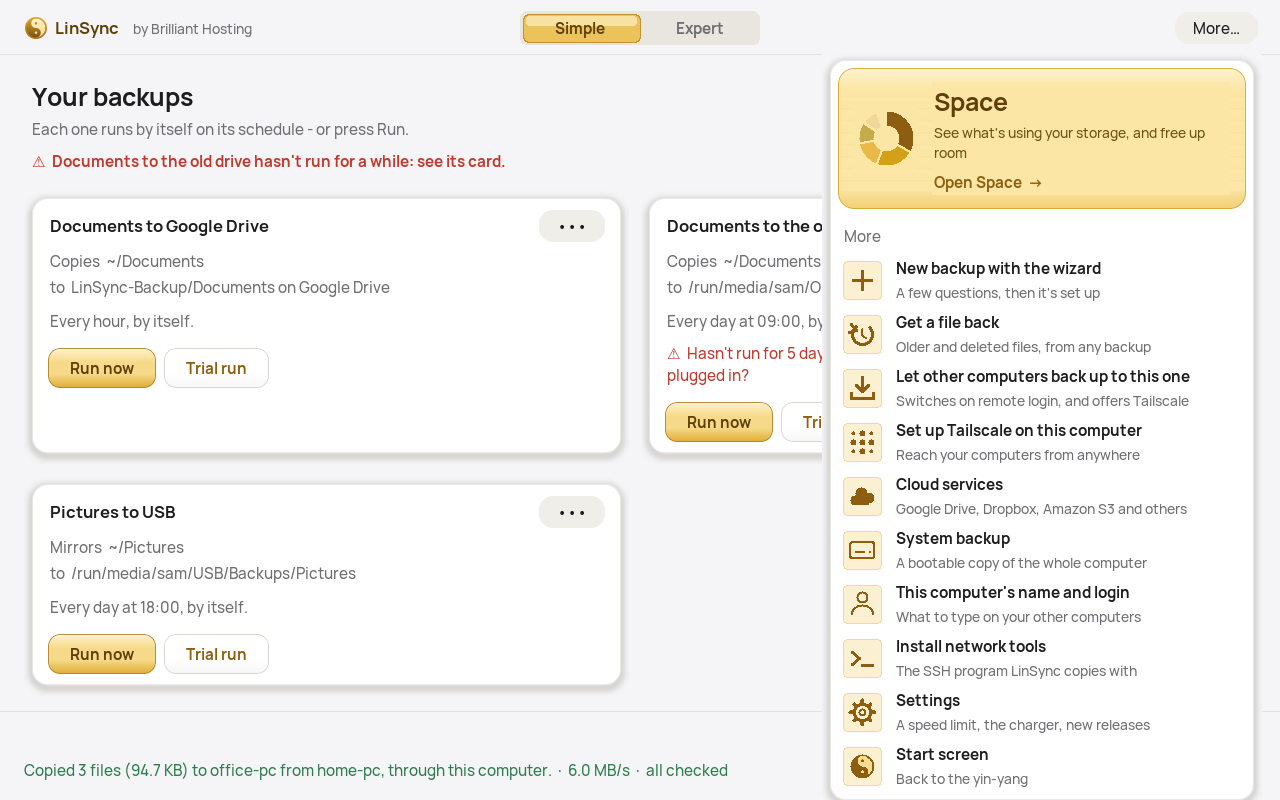
The More panel dropped down from the corner: Space at the top, then New backup, Get a file back, Let other computers back up, Set up Tailscale, Cloud services, System backup, This computer, Install network tools, Settings and Start screen.

The More panel

Everything that isn't a backup lives behind one button, each with a line saying what it does.

  1. 1SpaceSee what's using your storage and free up room (the last two slides).
  2. 2Let other computers back up to this oneThe receiving wizard from an earlier slide.
  3. 3Set up TailscaleSo you can reach your computers from anywhere.
  4. 4Cloud servicesNew: the clouds you've connected, which backups use each, Check and Disconnect, and Connect a cloud.
  5. 5System backupA bootable copy of a Linux computer, or a home-folder backup on a Mac or PC.
  6. 6This computer's name and loginWhat to type on your other computers.
  7. 7Install network toolsAdds the SSH program if a computer doesn't have it yet.
  8. 8More…Opens and closes the panel. Click anywhere else, or press Esc, to close it.
  9. 9Get a file backNew: older and deleted files, from any backup (the next slide).
  10. 10SettingsNew: a speed limit, scheduled backups waiting for the charger, and new releases.
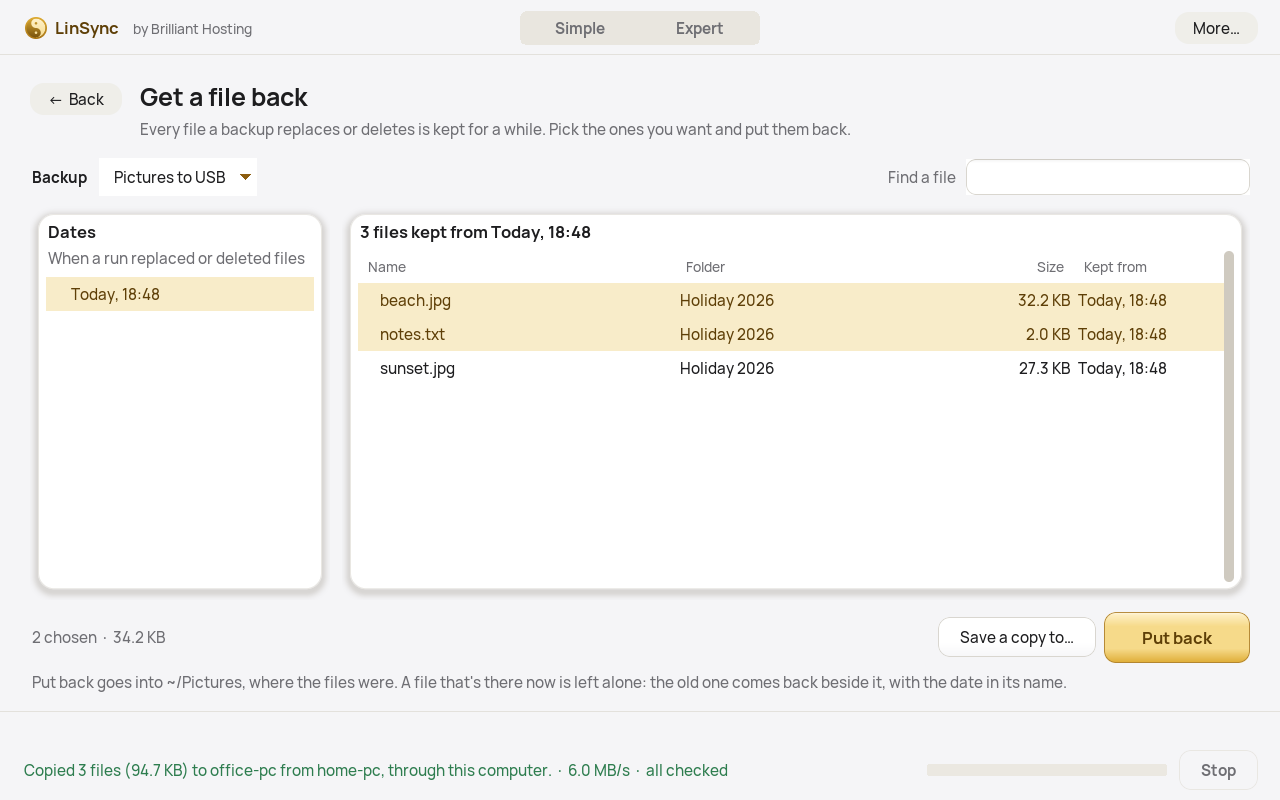
Get a file back: Pictures to USB chosen, one date on the left and three files kept from it on the right, two picked, with Save a copy to and Put back.

Get a file back

New in release 14: every file a backup replaces or deletes is kept for 30 days. Pick it, and put it back.

  1. 1BackBack to Simple or Expert. So does the switch at the top.
  2. 2BackupWhich backup's kept files to look at.
  3. 3Find a fileType part of a name to search every date at once.
  4. 4DatesEach run that replaced or deleted files. Click one.
  5. 5The filesWhat that run kept, with its folder and size. Pick one or several.
  6. 6How manyHow many are picked, and how big they are.
  7. 7Put backBack where they were. Nothing there now is replaced.
  8. 8Save a copy to…Into any folder you choose instead.
  9. 9Where they goA file with that name already there stays: the old one comes back beside it, with the date in its name.
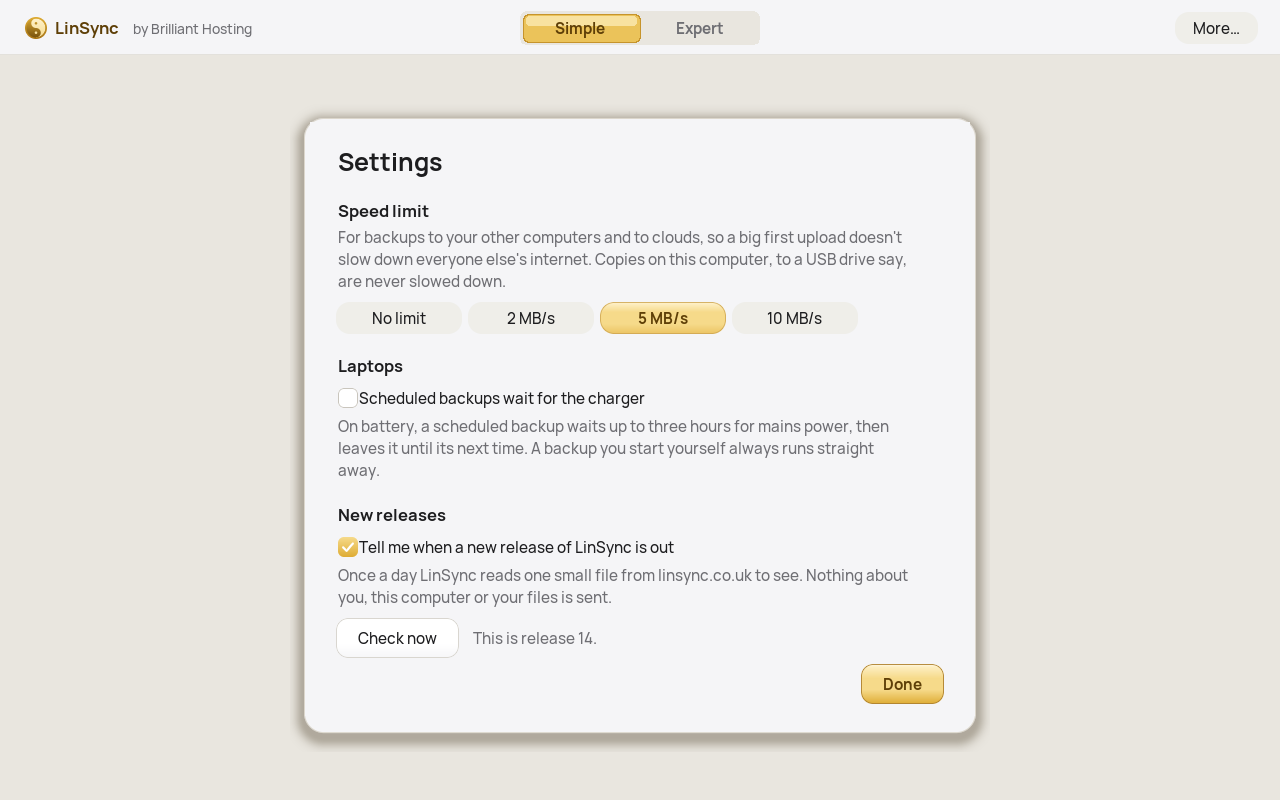
Settings: Speed limit with No limit, 2, 5 and 10 MB/s, 5 chosen; Laptops: scheduled backups wait for the charger; New releases: tell me when a new release is out, with Check now; and Done.

Settings

New in release 14, from More…, then Settings.

  1. 1Speed limitFor your other computers and clouds, so a big upload doesn't slow everyone else's internet. Copies on this computer are never slowed.
  2. 2Wait for the chargerOn battery, a scheduled backup waits up to three hours for mains power. One you start yourself always runs.
  3. 3New releasesOnce a day LinSync reads one small file from linsync.co.uk. Nothing about you is sent.
  4. 4Check nowAsks straight away, and says which release you have.
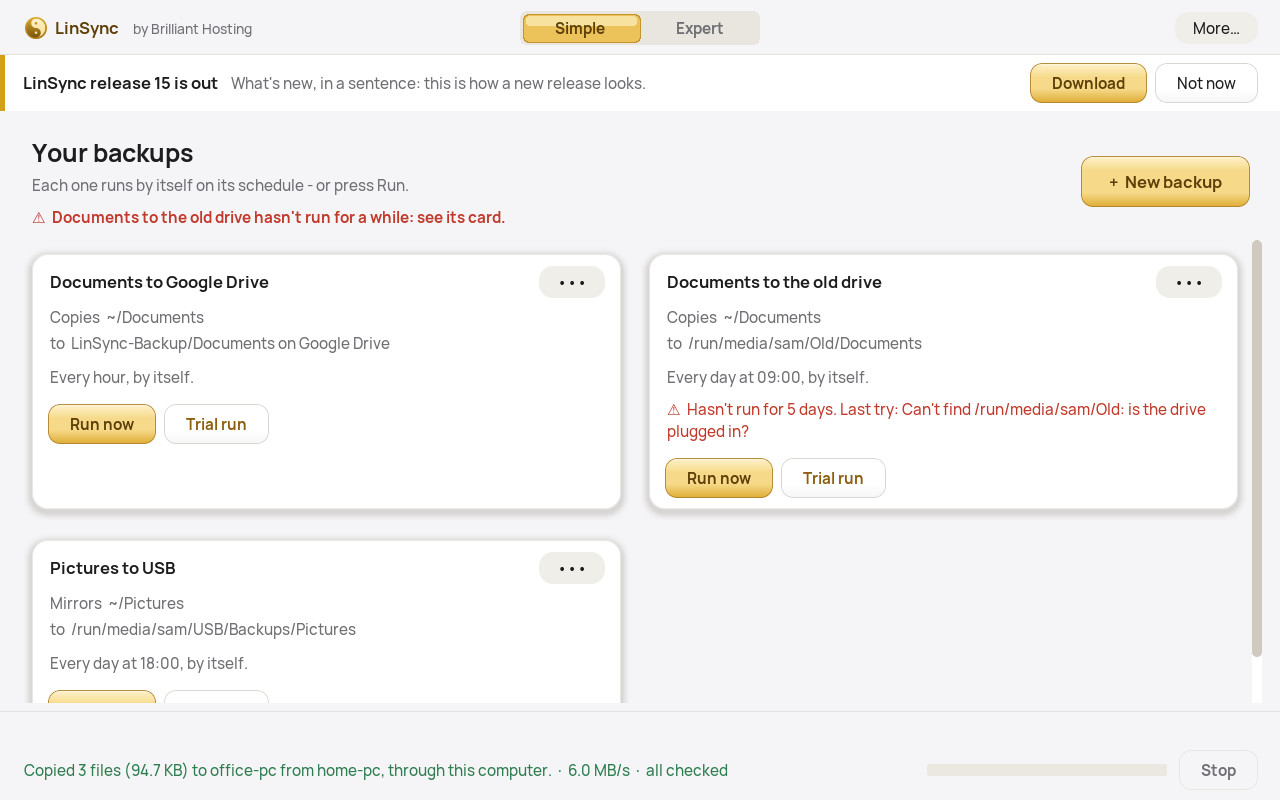
Simple: a strip under the top bar saying a new release is out, with Download and Not now; a red note that Documents to the old drive hasn't run for a while; and on its card, hasn't run for 5 days, last try: can't find the drive.

When something needs a look

New in release 14: a backup that has quietly stopped says so, and so does a new release.

  1. 1A new releaseShows when linsync.co.uk has a newer release. Not now hides it until the next one.
  2. 2Download and Not nowDownload opens the download page in your web browser.
  3. 3The note at the topWhich backups haven't run for a while.
  4. 4The red lineOn the backup's own card: how long, and what went wrong on its last try.
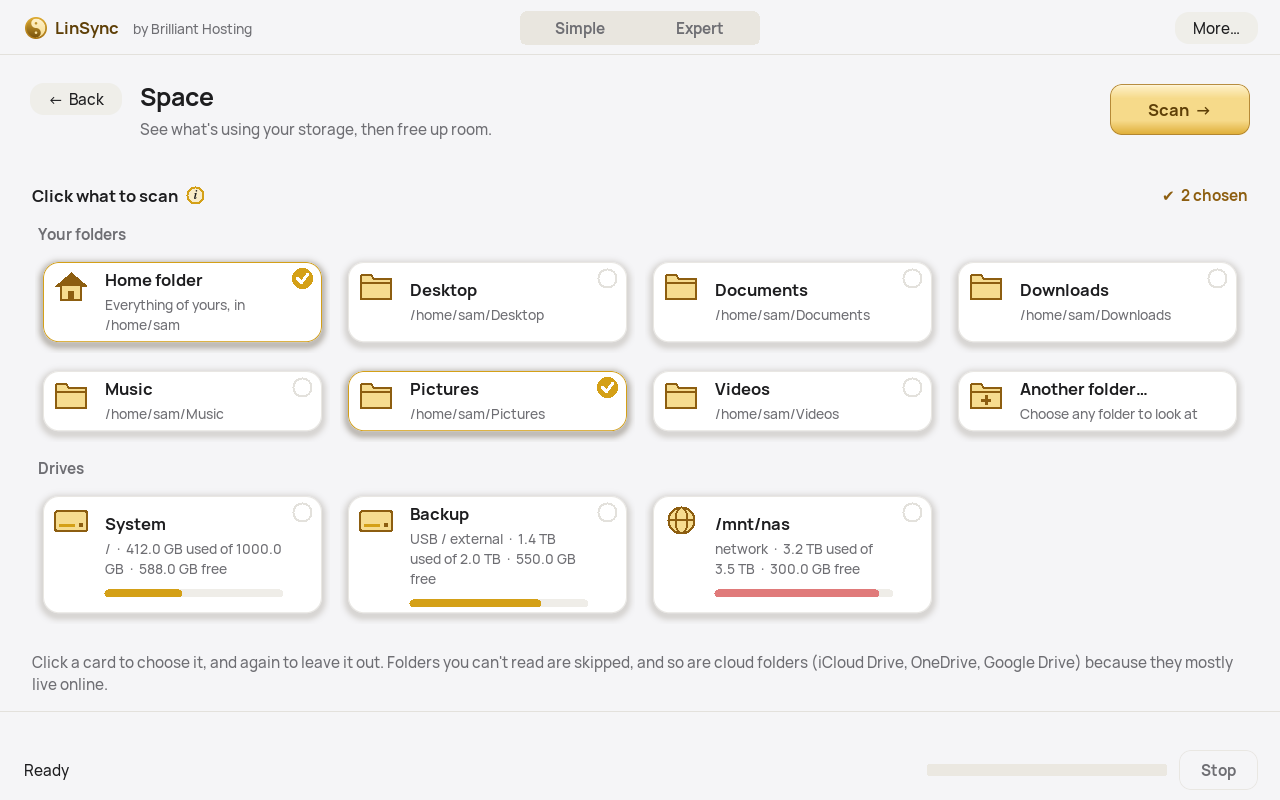
Space inside LinSync's window: folders (Home, Desktop, Documents, Downloads, Music, Pictures, Videos, Another folder) and drives as cards, with Home folder and Pictures chosen in gold, and a Scan button.

Space: click what to scan

Space is part of LinSync: open it with More…, then Space, and the window turns into it. Click the folders and drives you want to look at, then press Scan.

  1. 1Your foldersClick a card to choose it: it turns gold, with a tick. Click again to leave it out. Your Home folder is chosen to start with.
  2. 2Another folder…Any other folder, picked in LinSync's folder chooser.
  3. 3DrivesThe whole computer, plugged-in drives and network drives, each with how full it is.
  4. 4ScanLooks through what you've chosen, then shows the ring chart. A whole drive can take a few minutes.
  5. 5BackLeaves Space. So does the Simple | Expert switch at the top.
  6. 6What's chosenThe name of what you picked, or how many.
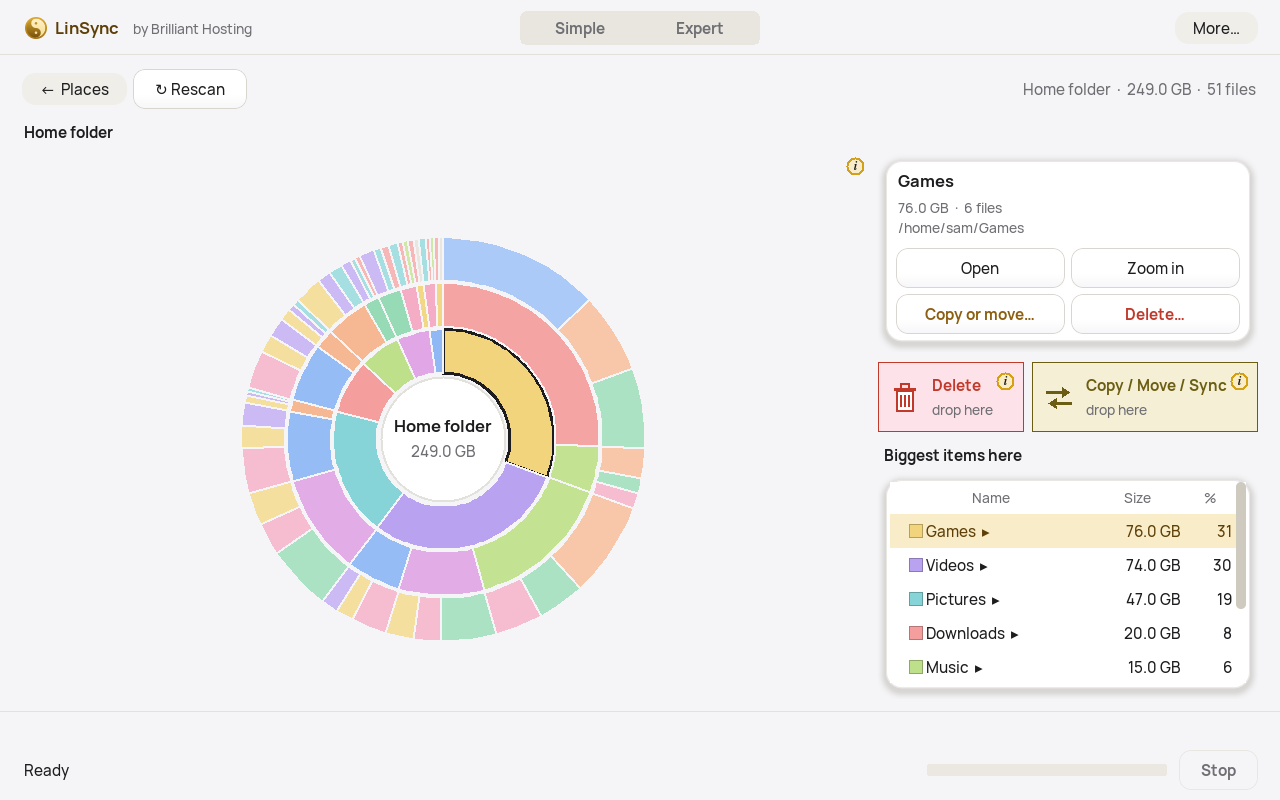
Space: a ring chart of a 249 GB home folder, with Games, Videos and Pictures the biggest slices, Games selected in the details panel, Delete and Copy/Move/Sync drop zones and a list of the biggest items.

Space: what's using your storage

A ring chart of what you scanned, one place at a time. Find what's filling it, then clear it out or move it somewhere else.

  1. 1The centreThe folder you're looking at and its total size. Click it to go back up a level.
  2. 2SlicesEach ring is one folder level deeper. Click a slice to select it, double-click to zoom in.
  3. 3DetailsSize, file count and path of what you've selected, with Open, Zoom in, Copy or move and Delete.
  4. 4DeleteDrag a slice here, then choose the bin or permanent. System files and whole drives are protected.
  5. 5Copy / Move / SyncDrag a slice here and Expert opens with it on the left, ready to copy or move it, for example old videos to a drive.
  6. 6Biggest items hereThe same folders as a list, largest first, with the share of space each one takes.
  7. 7Places and RescanChoose other folders or drives, or scan again after a clear-out.